Best AI Photo Editor Free: A Practical 2024 Guide
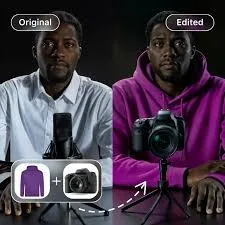
If you sell products online, you already know the problem: good photos sell, bad photos stall. The gap between a cluttered phone snapshot and a clean, scroll-stopping product image used to require a photographer, a studio, or hours in complicated software. Free AI photo editors have changed that math.
This guide walks through what "free" actually means, what to look for, and how to get genuinely usable product images without paying anything upfront — plus where free tools hit their limits for a real retail or e-commerce brand.
What Is the Best AI Photo Editor Free Option Right Now?
The best free AI photo editor is the one that does your most common job well without pushing you into a paywall mid-task. For most product sellers, that job is background removal, lighting cleanup, and resizing — so the best tool is whichever handles those three reliably on your real photos.
There is no single winner for everyone. A solo maker photographing handmade candles has different needs than a fashion retailer uploading 200 SKUs a week.
Instead of chasing a "#1 tool" label, test a shortlist against your own catalog. Upload three or four of your actual product shots — including a messy one — and see which editor handles edges, shadows, and reflective surfaces without turning your product into mush.
[IMAGE: Side-by-side comparison of a raw phone photo of a ceramic mug on a kitchen counter versus the same mug cleanly cut out on a soft neutral background]
What Features Should a Free AI Photo Editor Actually Have?
A useful free AI photo editor should cover background removal, basic retouching, and multi-size exports at minimum. These three features alone turn an amateur photo into something you can confidently put on a product page or an Instagram grid.
Background removal is the headline feature. Look for clean cutouts around tricky areas — hair, glassware, jewelry chains, and fabric fringe are where cheap tools fall apart.
Auto-enhancement matters almost as much. AI that corrects exposure, white balance, and color so your product looks like it does in real life saves you from the "why is this beige sweater showing up grey?" problem that quietly loses sales.
Resizing and format exports round out the essentials. You need a square for the feed, a vertical for Stories and Reels, a wide banner for your homepage, and a clean file for marketplaces — ideally without re-editing from scratch each time.
One feature worth checking: does the tool let you keep edits non-destructive or re-editable? Flattened one-shot exports are fine until you need to swap a background color for a seasonal campaign.
How Do I Edit Product Photos Without Design Skills?
You edit product photos without design skills by relying on AI presets and templates instead of manual tools. Modern editors do the hard work — isolating the product, fixing light, suggesting layouts — so your job becomes choosing, not building.
Start with a clean source photo. AI can fix a lot, but it can't invent detail that the camera never captured, so shoot in daylight near a window and avoid harsh overhead shadows.
Next, remove the background and drop your product onto a simple surface. A plain white, soft grey, or single brand color almost always reads as more professional than a busy real-world backdrop.
Then apply a consistent look across your whole catalog. Shoppers trust a grid that feels like one brand, not a patchwork of different lighting and crops.
This is where an AI ad studio like QuadraPost fits naturally — you upload a real product photo and generate editable image and video campaign options that already use your brand colors and tone, so consistency happens by default rather than by manual effort.
[IMAGE: A tidy 3x3 product grid showing the same brand's items shot in a consistent style with matching backgrounds and lighting]
Are Free AI Photo Editors Good Enough for Selling Online?
For most product pages, social posts, and marketplace listings, free AI photo editors are absolutely good enough. The quality ceiling on free tools has risen fast, and a clean, well-lit, background-removed image will outperform a cluttered one regardless of the price you paid to make it.
Where free tools get you is in volume and polish. Many cap the number of high-resolution exports, watermark outputs, or lock the sharpest cutouts behind an upgrade.
They also tend to stop at the photo. A finished campaign usually needs more than a clean product shot — it needs headline text, offer badges, a seasonal theme, and matching versions for different channels.
So the honest answer is this: free AI editors are excellent for the photo itself. If your work ends at "clean product on a nice background," free will likely serve you well. If you regularly build full campaigns across formats, you'll eventually want something built for that workflow.
How Do I Make Seasonal and Festival Campaign Images Quickly?
You make seasonal campaign images quickly by starting from a strong base product photo and layering themed backgrounds, colors, and copy on top. The product stays constant; the mood changes with the season.
Think in terms of your retail calendar. A back-to-school push, a summer clearance, a Black Friday sale, a holiday gift guide, or a regional festival each has its own color palette and emotional tone that your images should echo.
For a festive push, warm tones, soft glows, and gift-wrap motifs can reframe an everyday product as a present. For a summer sale, bright, airy, high-contrast looks tend to feel more urgent and fresh.
The trick is to reuse one clean product cutout and re-skin it per occasion, rather than reshooting. Generating several themed variations from a single upload lets you test which seasonal angle actually gets clicks before you commit your ad budget.
[IMAGE: One product shown in three seasonal treatments — a festive gift version, a bright summer-sale version, and a minimal everyday version]
How Should I Resize Images for Different Sharing Channels?
Resize images by exporting the right aspect ratio for each channel rather than forcing one file everywhere. A square crop that looks balanced on a feed will get awkwardly cut off as a vertical Story, and a wide banner squeezed into a square loses its message.
Keep a simple mental map of the core ratios. Square (1:1) for feed posts, vertical (9:16) for Stories, Reels, and short video, wide (16:9 or banner shapes) for websites and email headers, and marketplace-specific sizes for places like Amazon or Etsy.
When you resize, protect the product. Leave breathing room so important detail never touches the edges, and keep any text well inside safe zones so it isn't clipped on different screens.
Batch this step if you can. Editors that let you export every size from a single layout in one go save enormous time, especially when you're launching the same product across your website, social channels, WhatsApp broadcasts, and marketplace listings at once.
What Are the Limits of Free AI Photo Editing?
The main limits of free AI photo editing are export caps, watermarks, resolution restrictions, and a lack of true campaign tools. Free is excellent for getting started and for low-volume sellers, but it rarely scales to a busy catalog.
Complex images still trip up AI. Transparent packaging, mirror finishes, and fine textures like lace or mesh often need manual touch-up that free tools don't make easy.
Brand consistency is another gap. Free editors edit one photo at a time and usually have no memory of your colors, fonts, or tone, so holding a unified look across dozens of products becomes a manual chore.
And most free tools stop at still images. Short-form video now drives a huge share of product discovery, and turning a photo into a moving campaign asset is where free options typically run out of road.
If you find yourself editing the same way over and over, fighting exports, and rebuilding the same look repeatedly, that's the signal you've outgrown free — not a failure of the tool, just the natural ceiling of what free is meant to do.
The Bottom Line
Start free. For background removal, cleanup, and basic resizing, a free AI photo editor will take you surprisingly far, and you should absolutely use one before paying for anything.
Upgrade only when your bottleneck shifts from "making one good photo" to "launching consistent campaigns across many channels and seasons." That's a different job, and it deserves a tool built for it.
Ready to turn one product photo into a full campaign?
Upload a real product photo to QuadraPost and generate editable image and video campaign options in your own brand colors and tone — ready for every channel and season. Start your free trial.
FAQ
Is there a genuinely free AI photo editor with no watermark?
Some free AI photo editors export watermark-free images, but many reserve clean high-resolution downloads for paid plans. Always test a tool with your own product photo and check the actual export before committing to it for your catalog.
Can a free AI editor remove backgrounds from product photos?
Yes, background removal is the most common and reliable feature in free AI photo editors. Quality varies on tricky edges like glass, jewelry, and fabric, so test on your hardest product shot before trusting it across your whole range.
Do I need design skills to use an AI photo editor?
No. Modern AI editors rely on presets, templates, and automatic enhancement, so you choose options rather than build designs manually. Starting with a clean, well-lit source photo matters more than any design experience.
When should I move from a free editor to a paid campaign tool?
Move up when your challenge shifts from editing single photos to launching consistent campaigns across many products, channels, and seasons. Export caps, repetitive rework, and the need for video are the usual signals you've outgrown free tools.